Applies to Health Mate 2.0.6 for iPhone · Updated 2026-10-12
Everything you need to set up and use your Health Mate sauna app: download it, connect your sauna to Wi-Fi, and run a session from anywhere. About two minutes of setup, once.
You'll need three things:

Scan the code, or search the App Store for Health Mate Sauna.
https://apps.apple.com/app/id1511109665
Open the app and choose Create one under the sign-in button. You can use an email address and password, Google, or Sign in with Apple.
Your account is what links the sauna to you, keeps your session history, and lets you share the sauna with your household.
One email address is one account. Whether you use a password, Google, or Sign in with Apple, signing in with the same address gets you the same account and the same saunas — you don't need to remember which button you used first, and you can use different ones on different phones.
If you sign up with a password, we'll email you a verification link. You can use the app right away, but you'll need to verify before you can accept an invitation to someone else's sauna.
Five steps, about two minutes. You only do this once.
The setup screen offers Get Started, and under it two ways to get unstuck before you begin: Watch the setup video, a narrated walkthrough of about three and a half minutes of exactly these steps, and Need Help Setting Up?, which opens an email to our team.
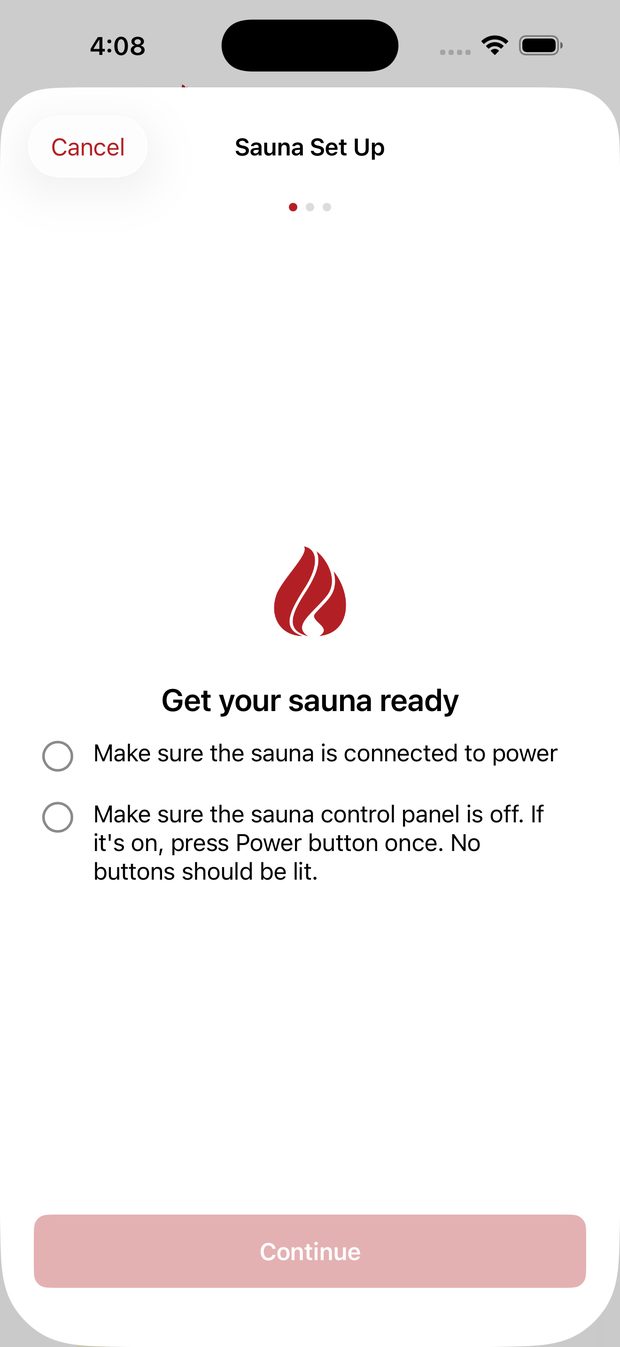
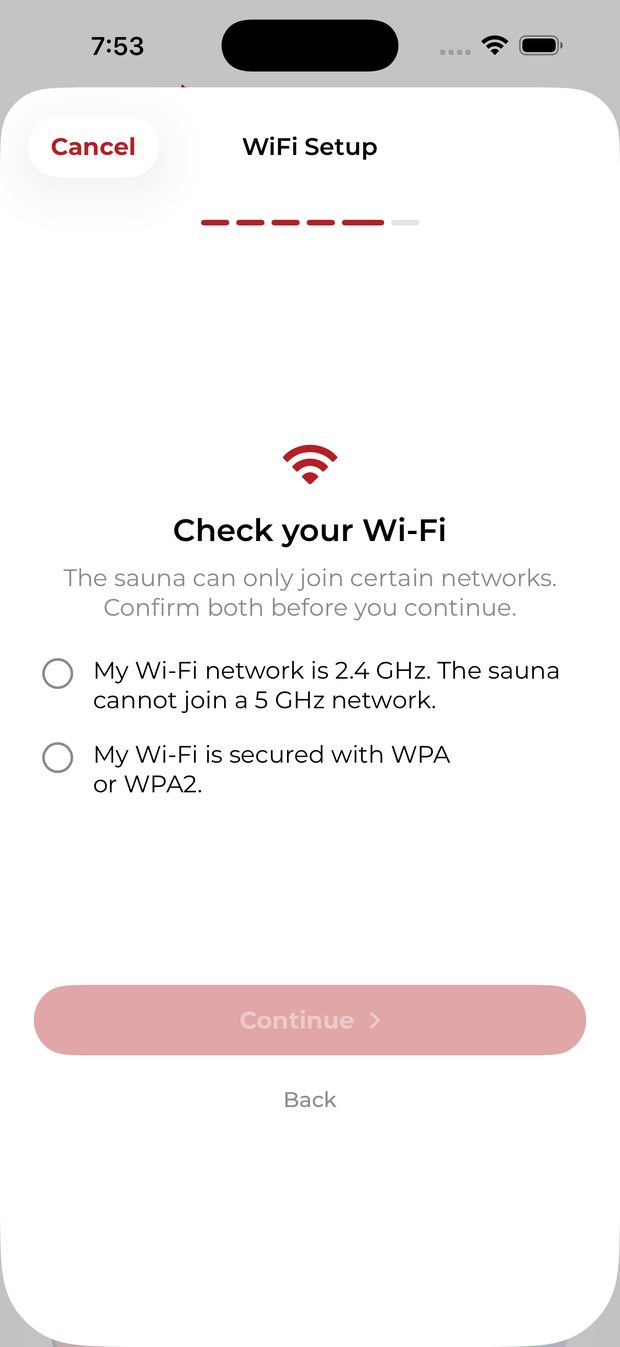
Two things to confirm — and the app won't let you continue until you've ticked both, because these are the two most common reasons setup fails:
the panel goes dark. No buttons should be lit.
Tap Continue.
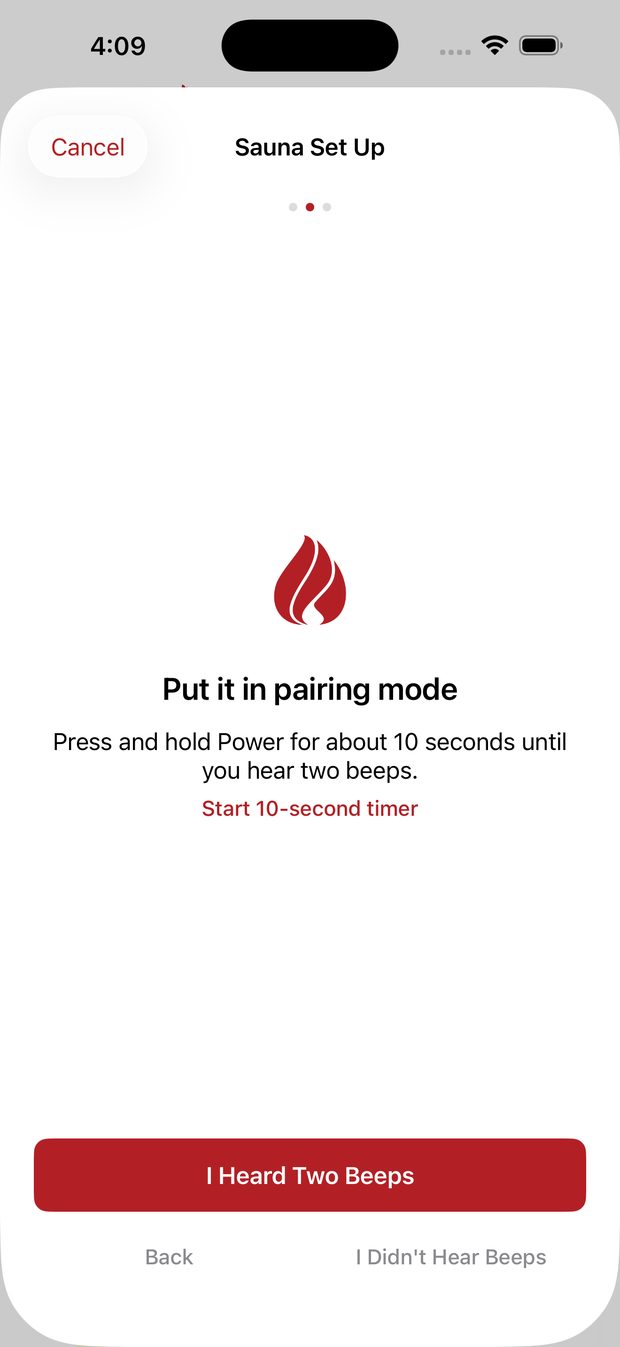
Press and hold the Power button on the sauna for about 10 seconds, until you hear two beeps. The app has a 10-second timer you can start and hold along with.
The two beeps are the confirmation. If you don't hear them, tap I Didn't Hear Beeps and the app will help you.
Tap I Heard Two Beeps.
Why hold the Power button if my sauna already works? Holding Power puts the sauna into a temporary setup mode where it can talk to your phone over Bluetooth. A sauna that's happily on Wi-Fi isn't broadcasting over Bluetooth at all, so this is the only way for the app to find it and confirm which account it belongs to.
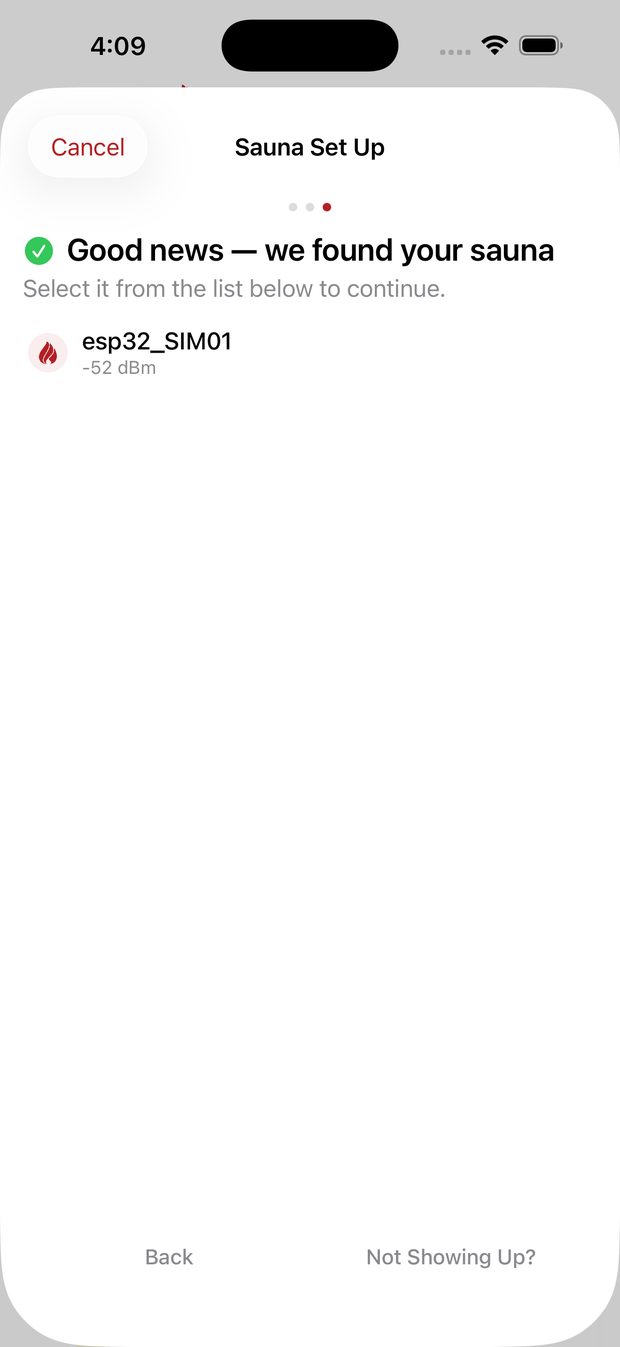
The app scans over Bluetooth. When your sauna appears, a green tick and "Good news — we found your sauna" confirm it, and a moment later the app connects to it on its own — no tap needed. If more than one sauna is found, tap yours in the list. Only saunas are listed — other Bluetooth devices around you are filtered out.
If nothing appears after 30 seconds, tap Scan Again, or Not Showing Up? for help. See My sauna doesn't appear during setup in Troubleshooting.
Setup asks about Wi-Fi in up to three short screens. Which you see depends on whether your sauna is already on a network.
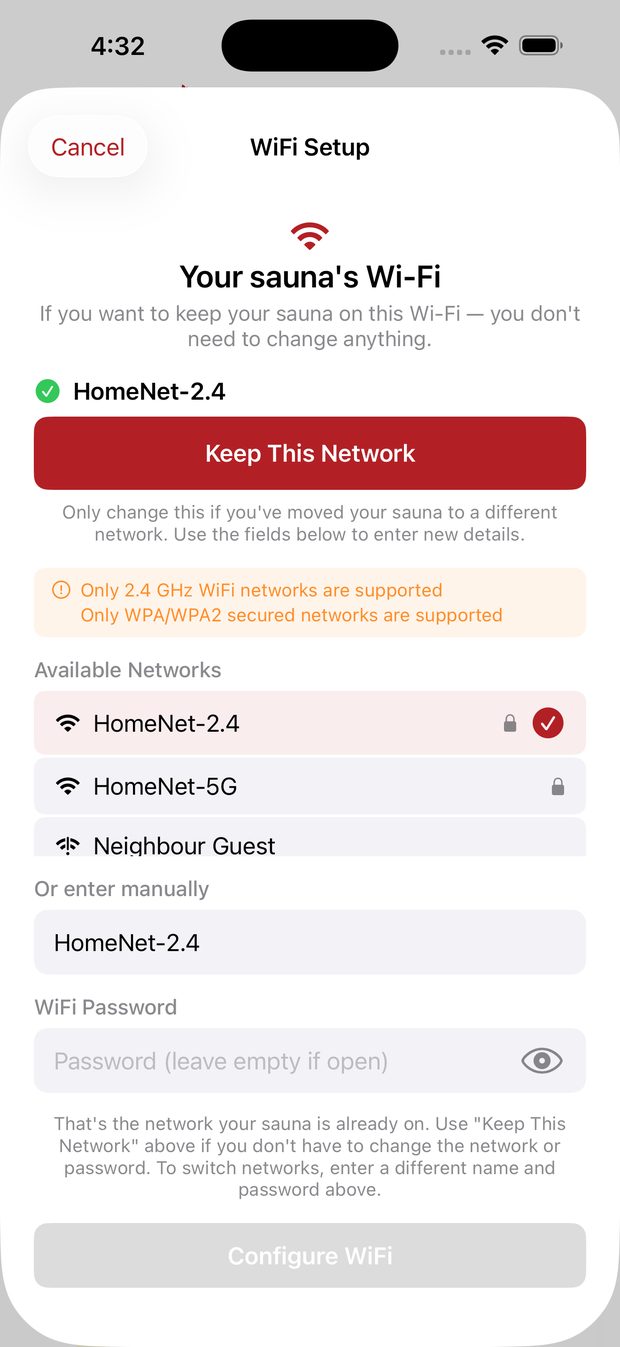
If your sauna was already connected before — anyone updating from the older app — the first screen shows the network it is already using, with a green tick. Tap Keep This Network. No password needed, nothing about your existing connection changes, and the sauna simply restarts onto the same network. Skip to Step 7.
Keep This Network is offered once per setup. If the sauna doesn't come back online on that network — it may remember one from a showroom, a dealer, or a previous home — the next attempt goes straight to the network form, with a note that the sauna couldn't reconnect, so a stale network can't send you round in circles.
To move it to a different network, tap Choose a Different Network and carry on below.
Check your Wi-Fi. Before the password screen you are asked to confirm two things about your network. Both have to be ticked to continue, and both are there because they are the two ways setup usually fails:
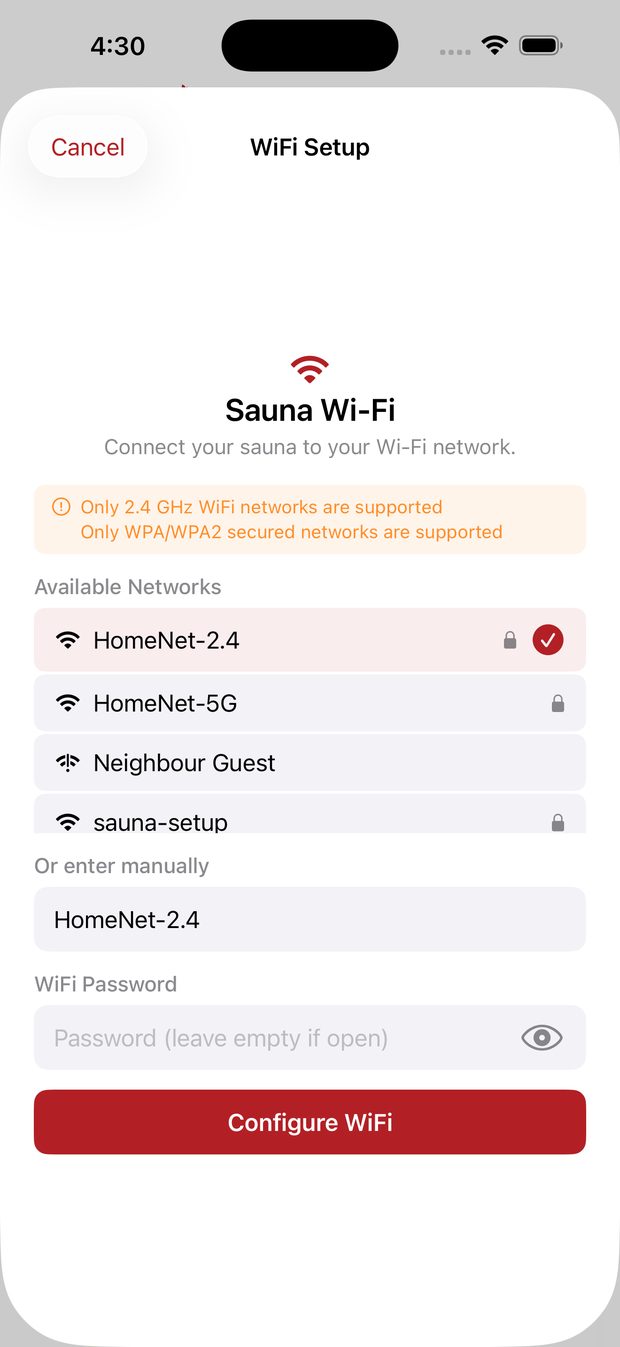
Then enter your network name and password. Type the name exactly as it appears on your phone — capitals, spaces and punctuation all matter, and a single wrong character is indistinguishable from a wrong password later.
Most saunas cannot list the networks around them, so there is usually nothing to pick from. If your sauna does offer a list, anything in it is a network the sauna can genuinely reach — which is worth knowing when a name you expect is missing from it.
The 5 GHz trap. Many routers give both bands the same name ("band steering"), and the 5 GHz half is invisible to the sauna. This is the single most common cause of failed setup.
If your network name covers both bands, try these in order:
the same name ending in -2.4, _2.4G or similar — and use that one.
The sauna saves the details, restarts, and joins your network. Most saunas are back within 30 seconds, but after a network change a sauna restarts two or three times, so the app keeps checking for up to five minutes and says so — "Still waiting for your sauna". There is nothing to do during the wait, and the app never re-sends your details on its own: every re-send restarts the sauna and pushes it further back. If five minutes pass with no sign of it, the app offers Choose a Different Network, which takes you back to the sauna list; if your sauna isn't listed there, hold Power for 10 seconds again. Nearly always the cause is a mistyped password or a 5 GHz network — see the trap above.
When setup finishes you'll be asked to name it — "Home Sauna", "Basement Sauna". The name appears in the app and in notifications ("Home Sauna is ready!"), so it's worth setting if you have more than one. You can skip and name it later from the ••• menu.
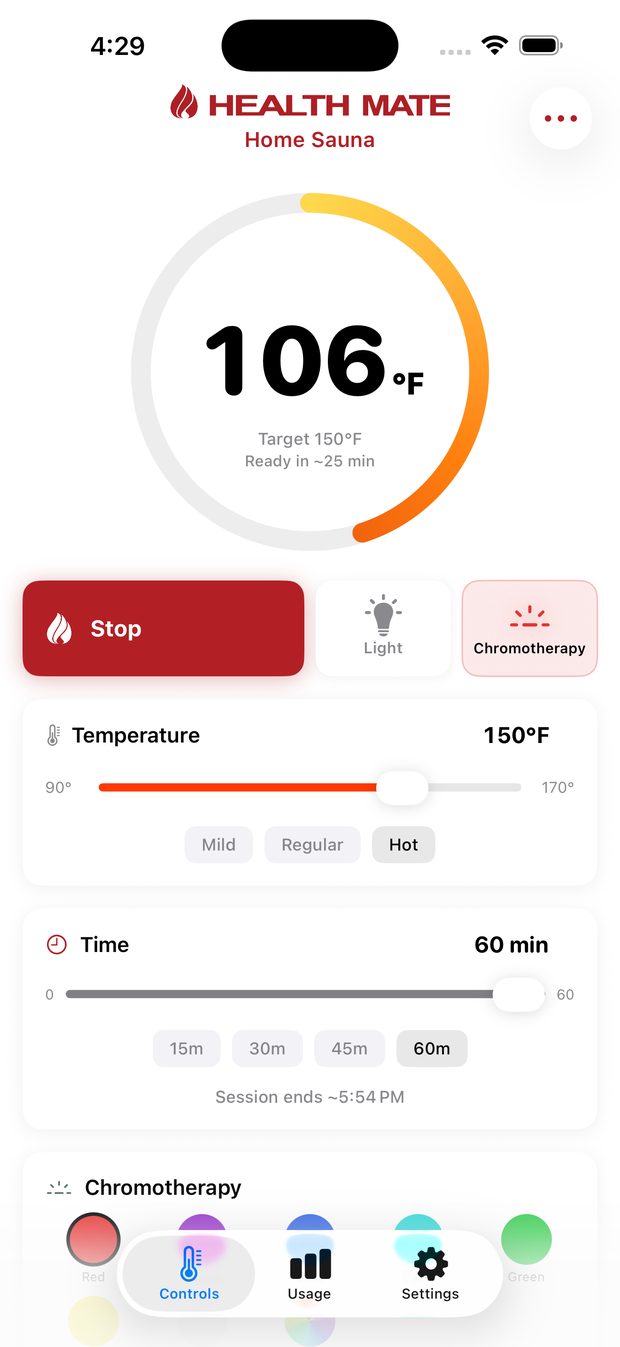
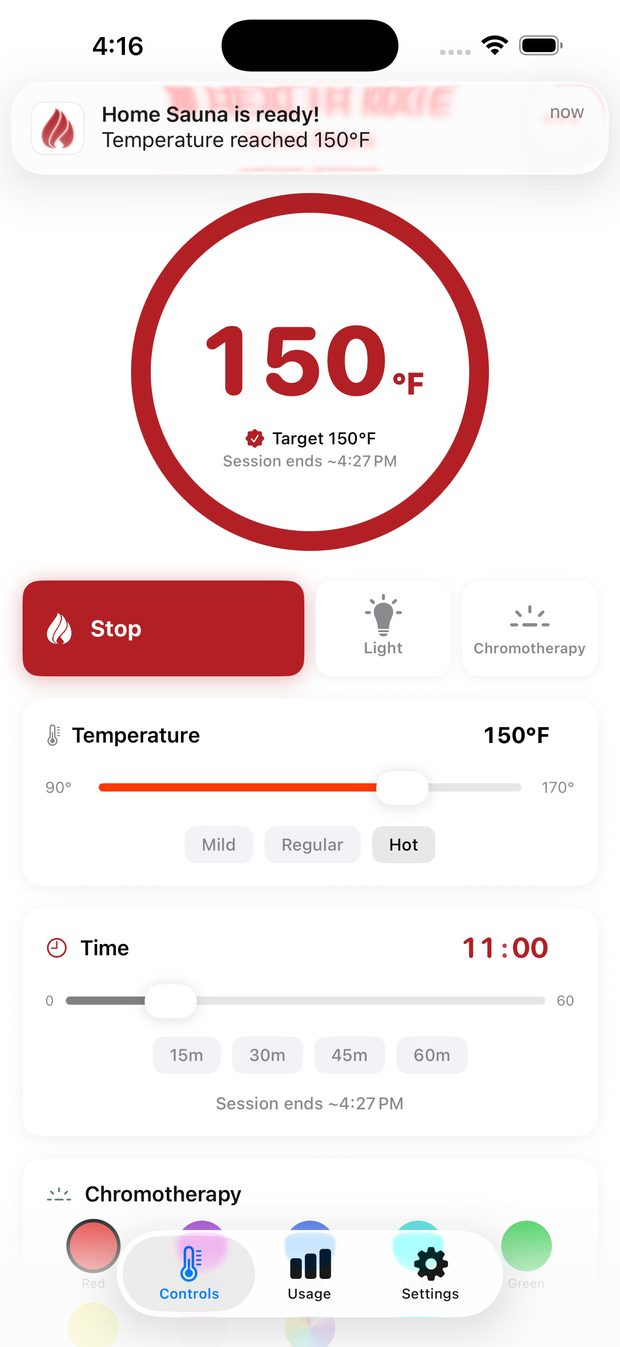
The big circle shows the temperature inside the cabin right now, and fills as it warms. It is a display, not a button — everything you can switch is below it, and each control says whether it is currently ON or OFF.
If the sauna's own control panel is switched off, the circle reads --. The sauna reports no temperature at all in that state, so there is nothing to show; Turn On Sauna still works and wakes it up.
| Control | What it does |
|---|---|
| Turn On Sauna / Turn Off Sauna | The whole sauna. The line underneath says exactly what it will start, so you always know before you tap. |
| CURRENT / LAST | The small circle beside that button chooses what it starts — see below. |
| Heating | The heaters only. Leaves your light and color as they are. |
| Cabin Light | The ordinary cabin light. |
| Chromotherapy | The colored lighting. |
| Temperature | Drag, or tap Mild / Regular / Hot. |
| Time | Drag, or tap 15m / 30m / 45m / 60m. Up to 60 minutes. |
Slider changes are sent to the sauna when you let go.
Next to Turn On Sauna is a small circle reading CURRENT or LAST. Tap it to choose between the two:
Whichever you pick, the line under the button always shows what it will actually start — for example "Starts 150°F · 45 min" — so the two never disagree. That matters most with LAST, where the button applies your saved session rather than the sliders currently on screen.
The ring fills as the cabin warms, and shows your target with an estimate — "Ready in ~40 min". You can close the app; it keeps heating.
The estimate is not a fixed guess. It follows how sauna cabins actually heat — quickly at first, more slowly as they approach the top of the range — and it learns your sauna over your first few sessions, so it gets closer to your cabin's real pace the more you use it.
Once it is running, the ring and the Time card both show the clock time your session will end — "Session ends ~6:53 PM" — so you can see when to be back without doing the arithmetic.
The ring completes, the temperature turns red, a tick appears beside your target, and your phone notifies you — so you don't have to keep checking.
Sessions run up to 60 minutes. The sauna counts down and switches itself off at the end.
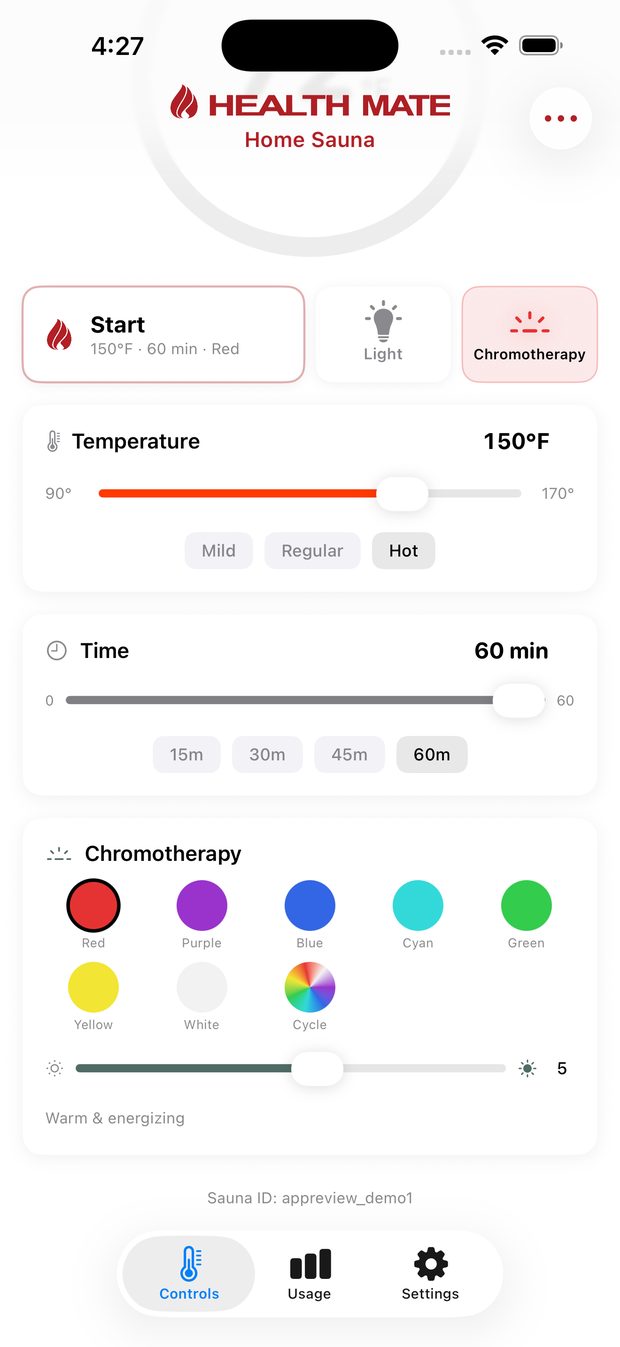
Colored lighting inside the cabin. Pick a color from the grid, set the brightness, or choose Cycle to drift slowly through all of them. The Light button is the separate, ordinary cabin light.
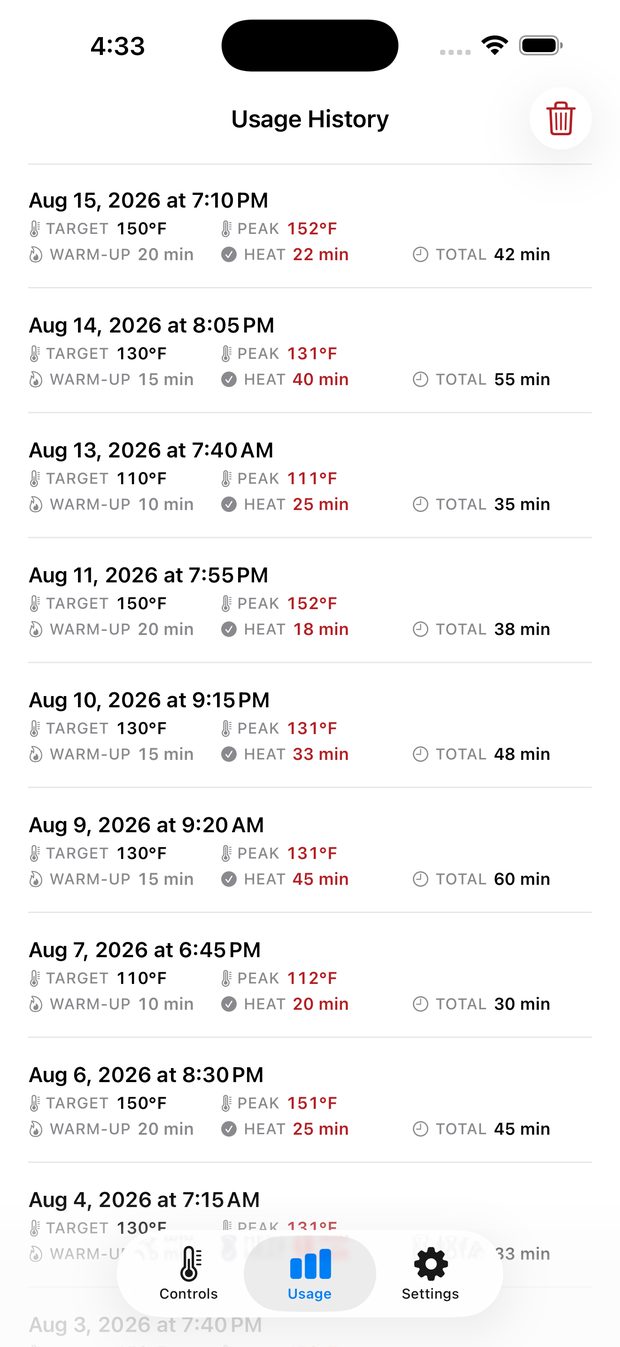
Open the Usage tab. Every session is recorded: target and peak temperature, how long it took to warm up, and how long you were at temperature.
If you change the temperature part-way through, the row shows both — 130→170°F — so a session is never measured against a target you only set later.
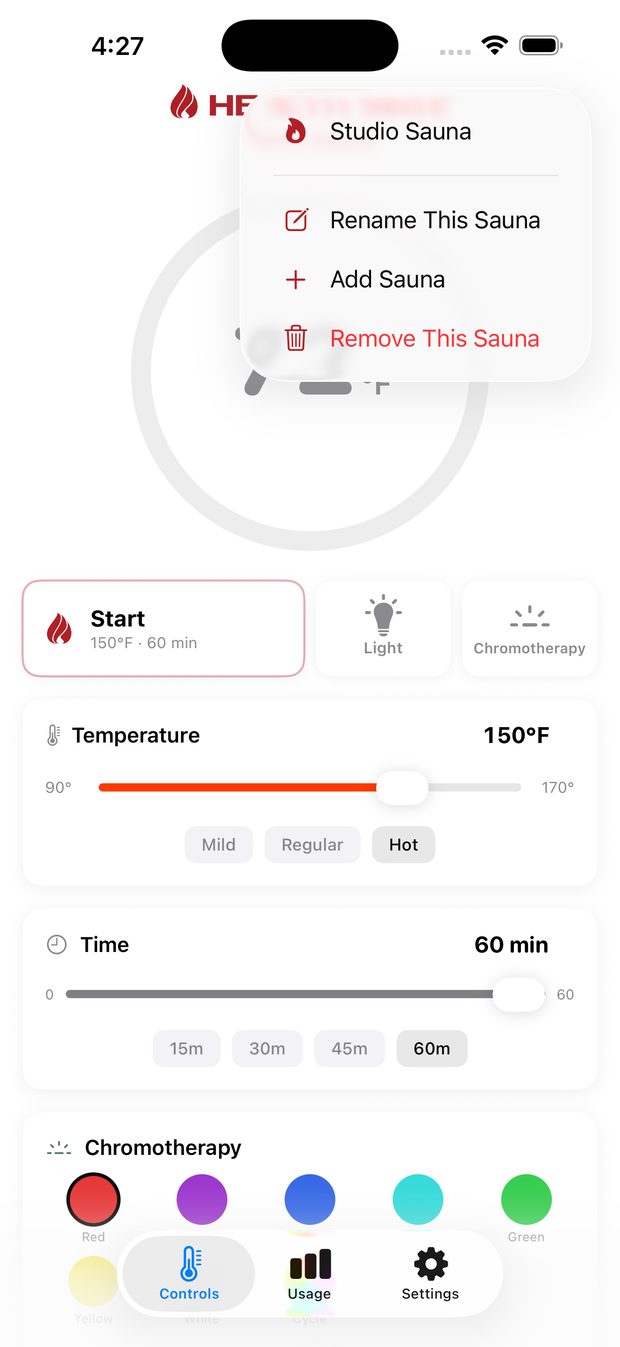
Tap the ••• menu in the top right to switch between saunas, add another, rename the current one, or remove it. There's no limit.
Settings → Temperature Unit. This changes the unit on the sauna's own control panel too, so the app and the physical panel always agree.
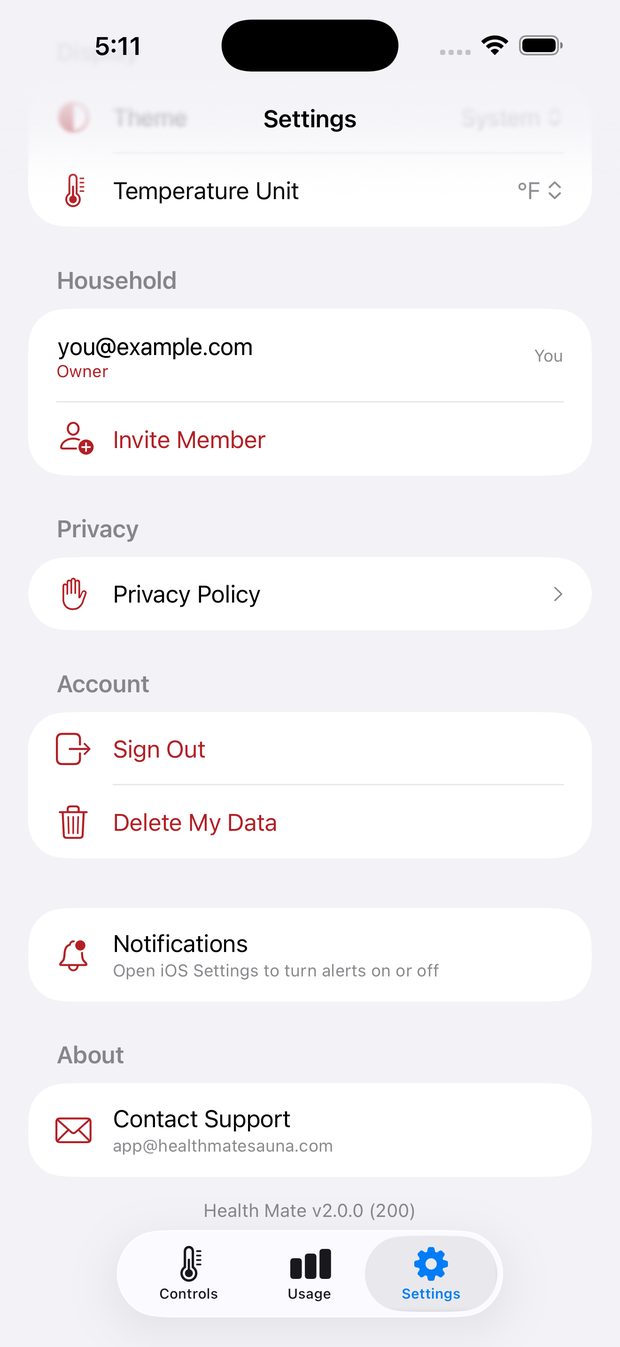
Go to Settings → Invite Member and enter their email address. They'll need to sign in to the app with that same address to accept. If they don't have a sauna of their own yet, the invitation is the first thing they see: Accept Invitation takes them straight to your sauna's controls.
Send lights up once the address looks right. After the invitation goes out, the app offers Send them the app link: it opens your phone's share sheet with a short message carrying both store links and the exact address they need to sign in with, ready to text or email from your own phone. Tap Done to skip it.
To withdraw an invitation, tap Cancel on its row under Household; the app asks you to confirm before it does anything.
Settings lists the household for every sauna you own, not just the one you are looking at, so you can see and manage who has access to each. The sauna you are currently using comes first, and within each household the owner is listed first.
Members can do everything with the sauna itself — heat, light, timer, history. Only the owner can invite people, remove people, transfer ownership, or unlink the sauna.
If your invitation doesn't arrive, check that:
@privaterelay.appleid.com address they actually sign in with — an invite sent to their real address will not reach the right account.The owner can also hand the sauna over to any existing member — useful when selling the sauna or moving house.
The app will tell you about:
On iOS 17.2 or later, while a session runs, a card on your Lock Screen and in the Dynamic Island shows the temperature as it climbs, when the sauna will be ready, and the minutes left. Everyone in the household sees it on their own phone. To turn it off, use your phone's Settings app under Health Mate → Live Activities.
To turn notifications off, use your phone's own Settings app under Health Mate. The app's Settings screen has a shortcut to it.
Settings is grouped, in this order:
Display
Invitations — only appears when someone has invited you to their sauna.
Household — the members of each sauna you own, and Invite Member.
Help & Support
Privacy & Notifications
Account — Sign Out, and Delete My Data.
The app version is the last line on the screen. Quote it if you contact us.
| What you see | What it means |
|---|---|
| Sauna not responding | The sauna isn't answering. Check power, Wi-Fi, and that your router hasn't changed. Controls stay visible but disabled until it reconnects. |
| Server unavailable | Your phone can't reach us — usually the phone's own connection. It clears itself when the connection returns. |
| Command not confirmed | The sauna didn't acknowledge in time, so the app put the control back. Check it's online, then try again. |
| Still waiting for your sauna | Normal after a network change: the sauna restarts two or three times, and the app keeps checking for up to five minutes. Nothing to do. |
| Your sauna hasn't checked in yet | Five minutes passed without it. Nearly always a mistyped password or a 5 GHz network. Choose a Different Network takes you back to the sauna list; if the sauna isn't listed, hold Power for 10 seconds again. |
| Already linked to another account | Someone else has claimed this sauna. They can remove it from their account, or invite you to share it. |
In order of likelihood:
for 10 seconds to put it back into setup mode.
Every setup screen that can fail offers a way out at the bottom — Contact Support, Setup Guide and FAQ — so you never have to leave the app to find help.
While its panel is off, the sauna keeps the last temperature it measured, often from the end of your previous session. When you switch the panel back on, it shows that old number first, before it takes a fresh reading. If you press heat straight away, the old number counts down to the real one over the next few minutes, and the app shows it falling. Nothing is wrong, and the app measures your session from the real temperature.
To avoid it, switch the panel on, wait about ten seconds, then press heat. Starting the sauna from the app takes care of this for you.
Whoever is standing at the sauna wins. If you tap something in the app and someone presses a button on the panel a moment later, the app follows the sauna rather than overriding it, and tells you so — "Changed at the sauna panel". Nothing has gone wrong and nothing needs redoing; the app is showing you what the sauna is actually doing.
If the two do somehow look different, give it a few seconds — the app is showing what the sauna last reported. If they still disagree, close the app and open it again.
Holding Power for 10 seconds puts the sauna in pairing mode, which takes it off your Wi-Fi, and it stays there until it is put back. To put it back, open Health Mate near the sauna, tap the ••• menu, then Add Another Sauna, choose your sauna and tap Keep This Network. It is back online within seconds, with its history and household. There's no need to remove it.
Nothing is lost. Open setup again and it will be offered back to you under previously connected, with its name, settings and history intact.
What we store: your email address, the saunas linked to you, their settings and status, your session history, and diagnostic information (app version, phone model, OS version). The full policy is in Settings → Privacy Policy.
Your Wi-Fi password is sent directly from your phone to your sauna over Bluetooth during setup, and stored on the sauna. It is not stored in your account.
To delete everything: Settings → Delete My Data. This removes your account, your saunas' links to it, your session history and your notification settings. It cannot be undone. If you're the owner, the saunas are unlinked and can be claimed again — by you, or by a new owner if you're selling the sauna.
Settings → Help & Support has everything in one place: this guide, the FAQ, and Contact Support, which opens an email to our team with your app version already filled in. Telling us your sauna's name and roughly when the problem happened lets us look up exactly what it reported.
Need a hand? Email app@healthmatesauna.com · All guides · Support & FAQ · Privacy policy
